
Shopify Shipping Issues: Why Your Rates Aren't Showing at Checkout
Shopify Shipping Issues: Why Your Rates Aren't Showing at Checkout (And How to Fix It)
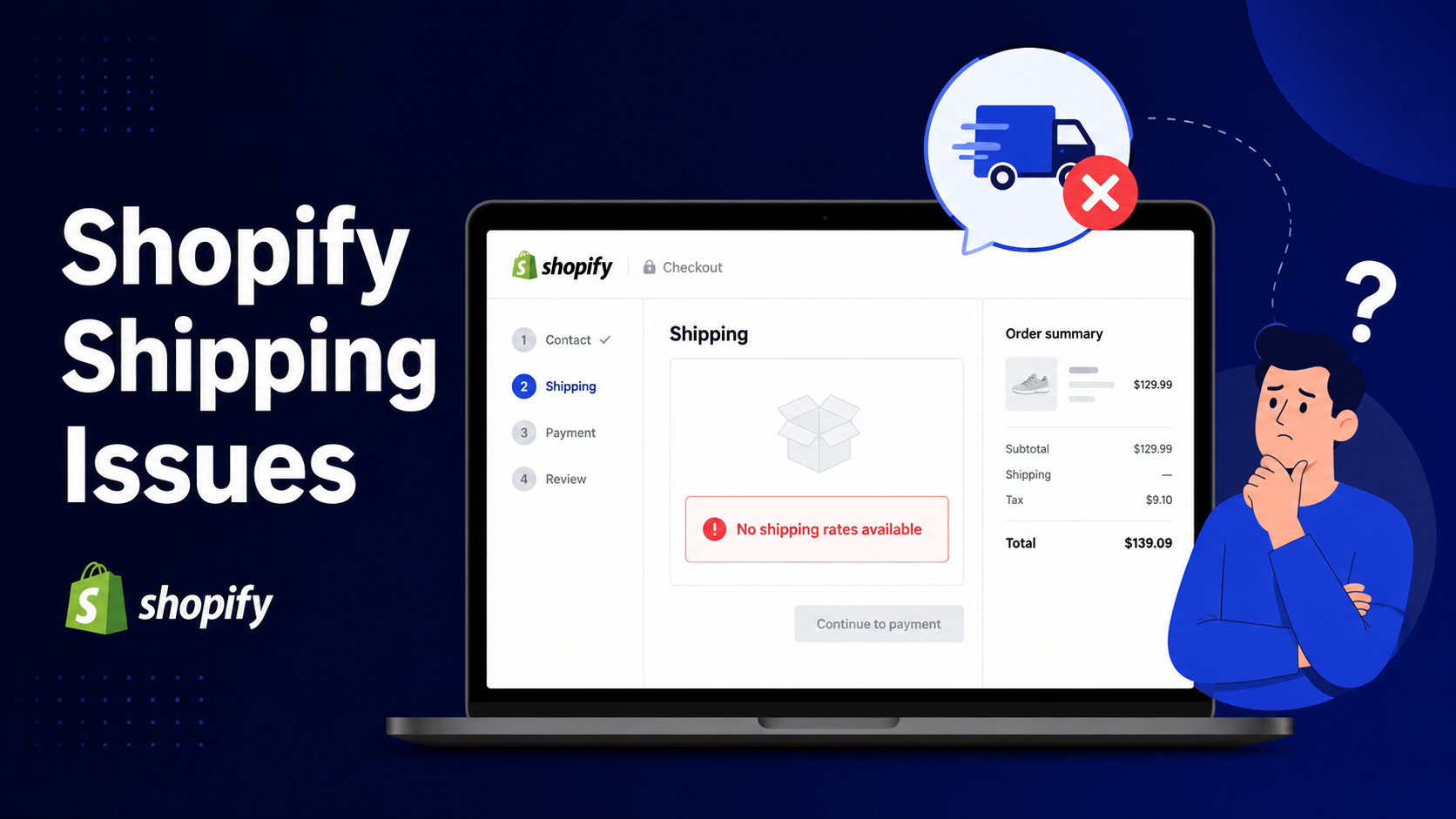
You've set up your Shopify store, added your products, configured your shipping settings — and then a customer reaches checkout and sees nothing. No shipping options. No rates. Just a blank section where their delivery choices should be. This is one of the most frustrating Shopify problems store owners face, and it's a silent sales killer. A customer who can't see shipping rates at checkout almost always abandons their cart. They don't email you to report the issue. They just leave. The good news is that this problem is almost always fixable — once you know where to look. In this guide, we'll walk through every major reason why Shopify shipping rates don't show at checkout and exactly what to do to fix each one.
Why This Problem Is More Common Than You Think
Shopify's shipping system is powerful but layered. Rates are generated based on a combination of factors — product settings, shipping profiles, zones, weight, fulfilment locations, and carrier accounts. For your shipping rates to display to customers at checkout, the checkout details must match the conditions of the shipping rates that you set. There are many factors that can affect whether the checkout matches a shipping rate, such as product details, market settings, locations, shipping profiles, packaging, and carrier accounts. When even one of those layers has a misconfiguration, rates disappear entirely. Here's a breakdown of each cause — and the fix.
1. Your Product Has No Shipping Weight Assigned
The Problem
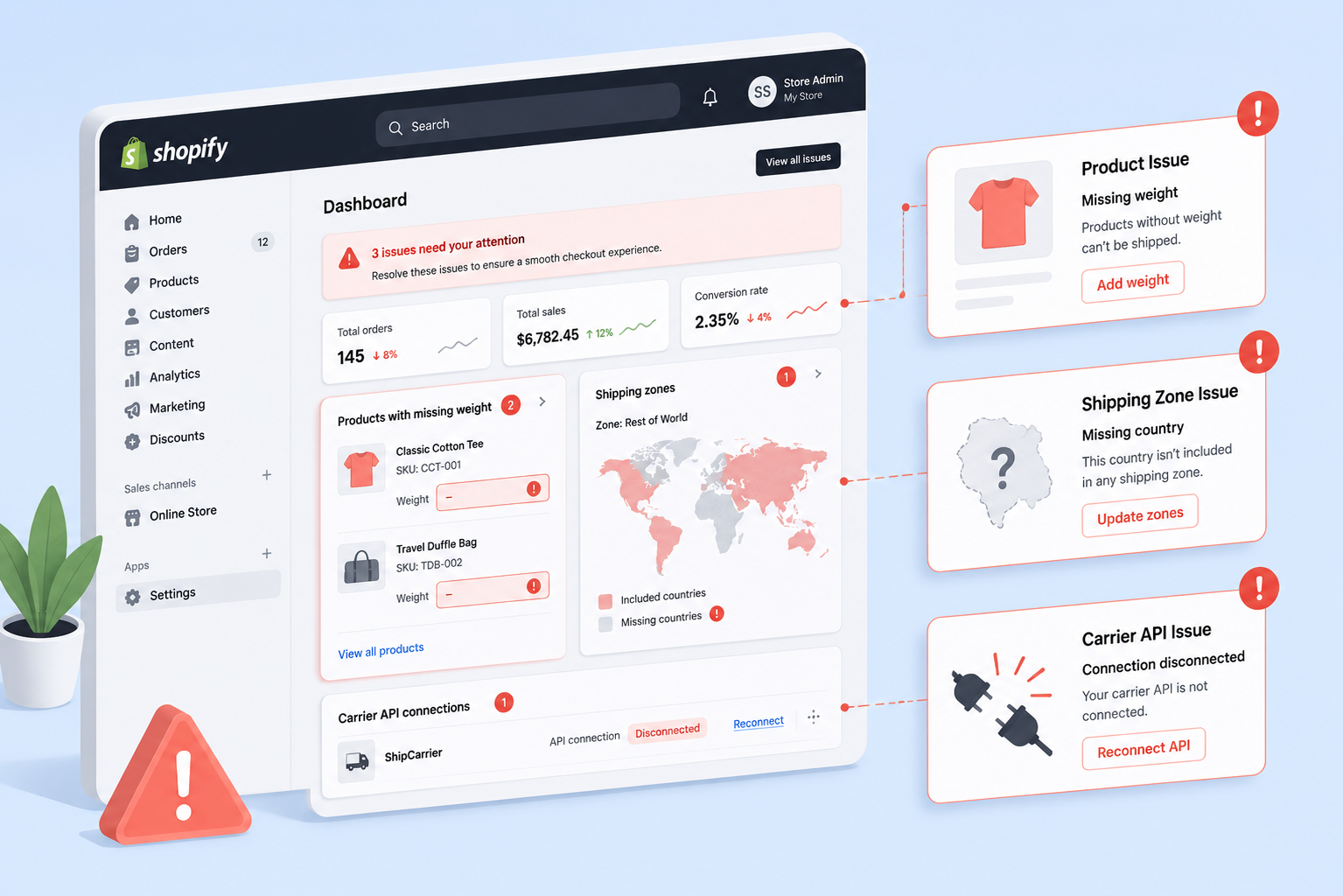
This is the number one reason shipping rates fail to appear — and it's the easiest to miss. If you're using weight-based or carrier-calculated shipping rates, Shopify needs to know how much the product weighs in order to calculate a rate. Physical products have an assigned shipping weight, and the weight units (lb, oz, kg) are correct. Without that weight, Shopify simply can't calculate what to charge. Many store owners set up their products quickly and skip the shipping weight field — especially if they copy-paste product listings or import via CSV. The result is a checkout that silently returns nothing. No weights = no rates. It's that simple.
The Fix
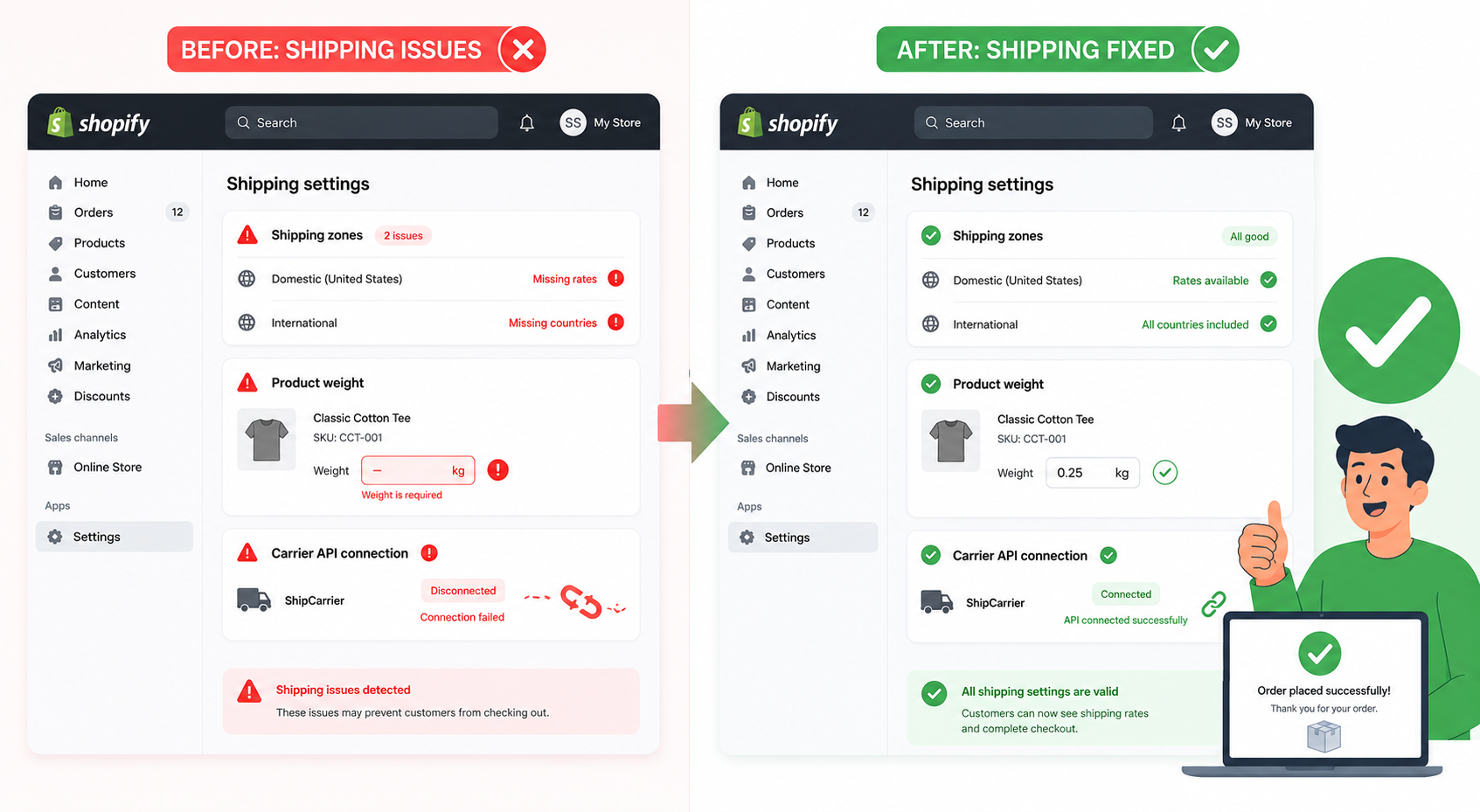
Go to Products in your Shopify admin, click on each product, scroll down to the Shipping section, and make sure a weight is entered in the correct unit (g, kg, lb, or oz). Do this for every variant if your product has multiple variants with different weights. If you have a large catalogue, use a bulk CSV export to audit which products are missing weights, fill them in, and re-import.
2. The Customer's Country Isn't in Any Shipping Zone
The Problem
If the customer's country is not inside your shipping zone, Shopify will not show any shipping method. For example, your zone is set for USA only, but the customer is in Canada — no shipping appears. This is especially common for stores that were originally set up for a domestic market and then started receiving international traffic. If you haven't added shipping zones for those new countries, every international customer hits a dead end at checkout.
The Fix
Go to Settings → Shipping and Delivery in your Shopify admin. Review each shipping profile and check the zones. If a customer's country is not in any shipping zone, they see "Shipping is not available for your address" at checkout and cannot complete the order — this is effectively a lost sale. Review your zones to ensure all countries you ship to are covered. Add the missing countries to the appropriate zones and assign rates to those zones. If you ship internationally but want flat rates, create an "International" zone and set a single flat shipping rate to cover all countries not already in a specific zone.
3. Your Products Are Assigned to the Wrong Shipping Profile
The Problem
Shopify allows you to create multiple shipping profiles — for example, a general profile for standard products and a separate profile for oversized or fragile items. Conflicts between profiles can cause unexpected rates. If a product is accidentally assigned to a custom profile instead of the general profile, it uses the wrong shipping rates. When a cart contains items from multiple shipping profiles, Shopify tries to combine the rates. If those profiles are misconfigured or don't have overlapping zones, no rates appear at all.
The Fix
Go to Settings → Shipping and Delivery and review each profile. Confirm that products are assigned to the correct shipping profile, shipping origins are assigned to the correct shipping profiles, shipping zones are assigned to the correct shipping origins within each profile, and shipping rates are assigned to the correct shipping zones within each origin. If you're unsure, simplify: move everything back to the General Profile temporarily to test whether rates appear. If they do, the problem is your custom profile configuration.
4. Your Product Is Marked as a Digital Product
The Problem
This one catches a lot of store owners who sell both physical and digital products. The checkout won't return shipping rates for products marked as digital products or services because they don't require physical shipment. Shopify If a physical product was accidentally saved as a digital/service item — perhaps during a bulk import or when toggling settings — it will never generate shipping rates at checkout, no matter how well everything else is configured.
The Fix
Go to Products, open the affected product, scroll to the Shipping section, and confirm the checkbox labelled This is a physical product is ticked. If it's unchecked, check it, enter the product weight, and save. Test the checkout again immediately after.
5. You're Using Carrier-Calculated Rates But Your Plan Doesn't Support Them
The Problem
Real-time carrier rates from services like UPS, FedEx, or USPS are a premium feature in Shopify. If you use an app to get shipping quotes, you must have the Third-party Calculated Shipping feature enabled on your Shopify plan. It's a standard feature on the Shopify Advanced plan. If you're on the Basic or standard Shopify plan and have set up carrier-calculated rates — either through Shopify's built-in carriers or a third-party app — those rates simply won't appear at checkout. No error message. No explanation. Just silence.
The Fix
Check which plan you're on in Settings → Plan. If you're not on Advanced or Plus, you have two options: upgrade your plan, or contact Shopify support and ask them to add the third-party carrier-calculated shipping feature to your current plan (this is sometimes available as an add-on for an additional monthly fee). Alternatively, switch to manual flat rates or price-based rates, which work on all Shopify plans.
6. Your Package Dimensions Aren't Configured
The Problem
For carrier-calculated shipping to work, Shopify needs to know not just the product weight but also the size of the box you'll ship it in. Carrier-calculated rates at checkout are estimates based on package weight and dimensions you have configured. Actual carrier charges may differ due to dimensional weight adjustments, surcharges, residential delivery fees, or fuel surcharges. If your default package dimensions aren't set up, the carrier API can't calculate a rate — and the checkout returns nothing.
The Fix
Go to Settings → Shipping and Delivery → Packages and add your standard box sizes — dimensions and empty weight included. Define your standard packaging options in Settings → Shipping and Delivery → Packages. Add the dimensions and empty weight of each box type you use. Shopify uses this information for carrier-calculated rates. If your products vary significantly in size, set up multiple package types so Shopify can pick the closest match for each order.
7. Your Fulfilment Location Isn't Linked to Your Shipping Profile
The Problem
If the inventory location is not linked, Shopify hides shipping. This is a backend setting that's easy to overlook, especially for stores that have added a new warehouse or fulfilment location after their initial setup. If you have products stocked in your Sydney Warehouse, but that warehouse is not set up in the shipping origin, the app won't be able to provide rates for those particular products stocked at that location. The same logic applies universally across all Shopify stores, not just those using third-party fulfilment apps.
The Fix
Go to Settings → Shipping and Delivery, open your shipping profile, and check the Shipping Origins section. Make sure every location where you hold inventory is listed as a shipping origin in the appropriate profile. If a location is missing, add it and assign the correct shipping zones and rates to it.
8. Cached Browser Data Is Hiding the Rates
The Problem
Sometimes the shipping rates are correctly configured and technically working — but a customer (or you, during testing) can't see them because of browser caching. Shopify stores certain checkout data in the browser session, and an outdated cache can make it appear as though rates aren't loading when they actually are. Test in an incognito browser, or clear your browser cookies and cache. Often the Shopify cache will keep prompting an error message, even when you have fixed the settings within the app or Shopify. Try using a different postcode every time you test the checkout; this forces Shopify to send a new shipping calculation request.
The Fix
Always test your checkout in a private/incognito browser window after making shipping configuration changes. Use a test order with Shopify's bogus gateway. Test with multiple different postcodes and addresses to cover different shipping zones. If rates appear in incognito but not in regular browsing, the issue is browser cache — not your settings.
9. Carrier API Outages or Invalid Credentials
The Problem
If you're using a third-party carrier integration or shipping app, the rate calculation depends on a live API connection to that carrier. Occasionally, carrier APIs go down, preventing Shopify from retrieving rates. When this happens, customers see a generic error or no shipping options. Additionally, all quoting apps require a set of credentials to communicate with your shipping carrier to retrieve rate estimates. Make sure your credentials are still valid. If they were working once upon a time, they may be failing now because a credential such as the password has changed.
The Fix
Check your carrier app's connection settings and use the built-in "Test Connection" feature if available. Verify your carrier account credentials are still active. There is no fix for carrier outages, but having a backup flat rate ensures customers can still check out even when the carrier API is temporarily unavailable. Always set up at least one manual flat rate as a fallback.
How to Systematically Test Your Shopify Shipping Setup
Once you've worked through the fixes above, don't just check once and move on. Create a test matrix covering every shipping zone, every rate tier (by weight or price), and key edge cases. Place test orders from different addresses using Shopify test mode. Document the expected rate and the actual rate for each test case.
Key edge cases to cover:
- An order right at your free shipping threshold
- A cart with products from different shipping profiles
- Orders to international addresses in each zone you've configured
- Your heaviest product and your lightest product
- A product with a shipping discount applied
Systematic testing reveals configuration gaps that a single casual test will never catch.
The Bottom Line
Shopify shipping issues are almost always configuration problems — not bugs. The platform gives you enormous control over how shipping works, but that flexibility means there are more places for things to go wrong. Missing product weights, unconfigured zones, wrong shipping profiles, and unsupported plan features are responsible for the vast majority of cases where rates fail to appear at checkout. Work through each cause methodically, test in incognito after every change, and always keep a manual flat rate as a backup safety net. Your customers will never know there was a problem — and your abandoned cart rate will thank you for it.
Is your Shopify store still losing sales to checkout errors or speed issues? A professional Shopify store audit can pinpoint exactly what's broken and give you a clear, prioritized fix list. Get in touch to find out what's costing you conversions.