
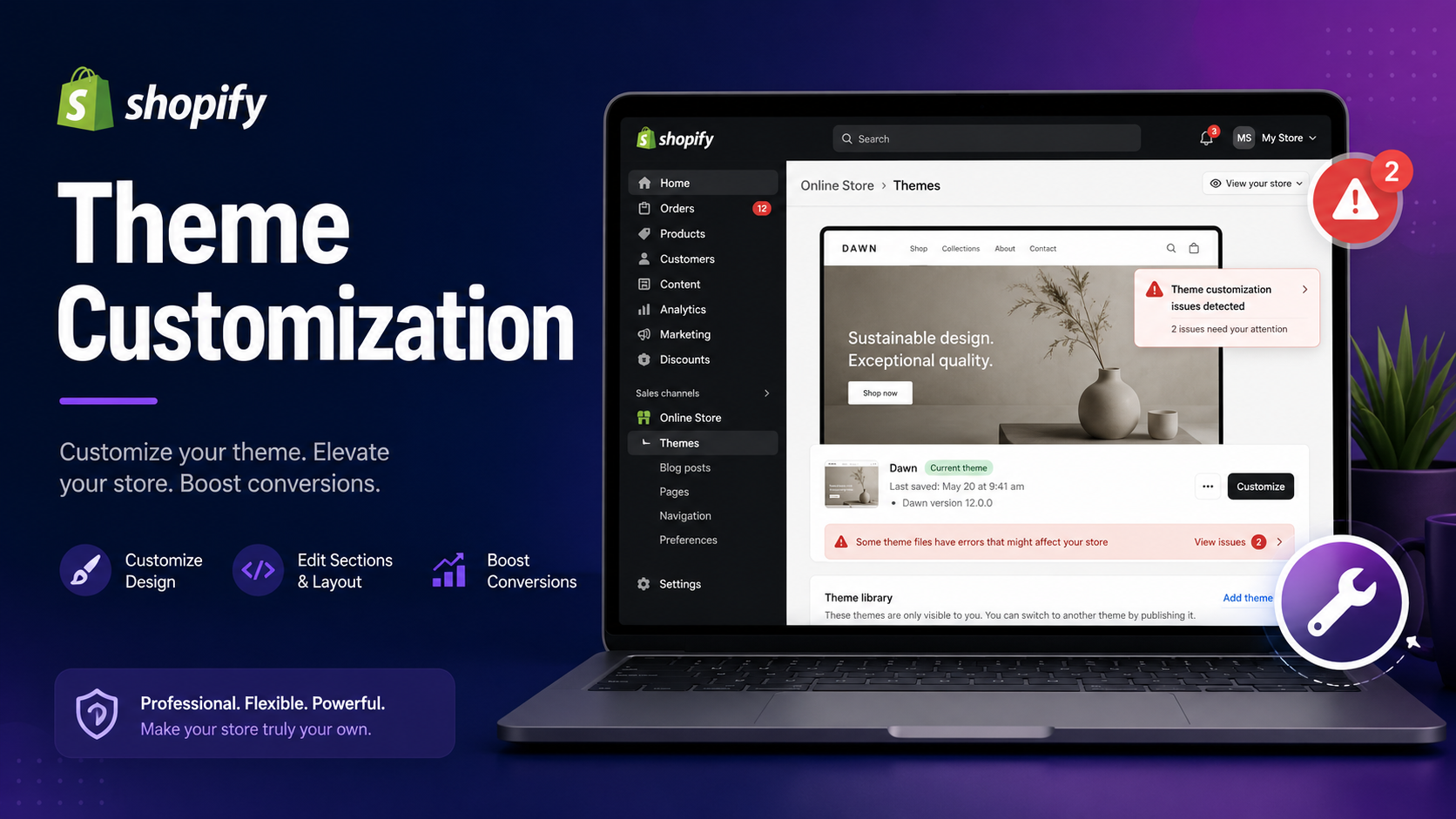
Common Shopify Theme Customization Mistakes (And How to Avoid Them)
Common Shopify Theme Customization Mistakes (And How to Avoid Them)
Your Shopify theme is the face of your brand. It's the first thing customers see, the environment where buying decisions are made, and the foundation your entire store runs on. Yet every day, store owners make the same theme customization mistakes — mistakes that quietly kill conversions, slow down page speed, and create a broken experience for shoppers. The good news? Every one of these mistakes is avoidable. Here's a breakdown of the most common Shopify theme customization problems and exactly what to do instead.
1. Editing the Live Theme Without a Backup
The Problem Many store owners jump straight into customizing their live theme — tweaking Liquid files, editing CSS, or modifying settings — without ever creating a backup. One wrong change to a section file or a missing closing tag in the layout can take down your entire storefront. If you don't have a duplicate theme saved, there's no easy way back. This happens constantly with beginners who treat the theme editor like a "safe sandbox." It's not. Every edit in the code editor is live the moment you hit save. The Fix Before touching a single line of code, duplicate your theme. In your Shopify admin, go to Online Store → Themes, click the three-dot menu next to your current theme, and select Duplicate. Label it clearly with a date (e.g., "Dawn Backup — June 2025"). This takes 30 seconds and can save you hours of recovery work. If you're making significant changes, consider using Shopify's Theme Kit or GitHub integration to version-control your theme files properly — the same way professional developers do.
2. Adding Too Many Apps That Inject Code into Your Theme
The Problem Apps are one of Shopify's biggest selling points, but they come with a hidden cost. Many apps — especially older ones — inject JavaScript and CSS directly into your theme files. Each script that loads adds weight to your pages. Stack five or six such apps and you're dealing with a bloated, slow storefront that fails Core Web Vitals and frustrates mobile users. The real danger is that even after you uninstall an app, its leftover code often stays embedded in your theme. Unused scripts keep loading, slowing your store down for no reason at all. The Fix Audit your installed apps regularly. For every app, ask: Is it generating measurable revenue or solving a real problem? If not, uninstall it — and then manually check your theme.liquid, header.liquid, and footer.liquid files for any leftover script or stylesheet tags the app may have left behind. Before installing any new app, check whether it uses Shopify's Script Tags API (older, less clean) or Theme App Extensions (newer, cleaner — removes itself on uninstall). Prefer apps built on the newer architecture.

3. Hardcoding Text, Colors, and Content Into Liquid Files
The Problem This is a trap that catches both beginners and developers rushing through a project. Instead of using Shopify's theme settings system to make content editable, people hardcode values directly into Liquid files: liquid<h2 style="color: #FF5733;">Free Shipping on Orders Over $50!</h2> Now that value is buried inside your code. Want to change the color? Edit the file. Want to update the shipping threshold? Edit the file. Want your client to be able to change it themselves? They can't — unless they know how to write Liquid. This approach turns simple updates into code changes every single time. The Fix Use Shopify's theme settings (settings_schema.json) and section settings to make all content and styling configurable from the Theme Editor. Store owners and non-technical team members should be able to update banners, colors, text, and promotional messages without ever opening a code file. For colors, use {{ settings.color_primary }} instead of hex values. For text, create text type inputs in your section schema. This is how professional, maintainable themes are built — and it's how Dawn and every premium Shopify theme works under the hood.
4. Ignoring Mobile Responsiveness After Customization
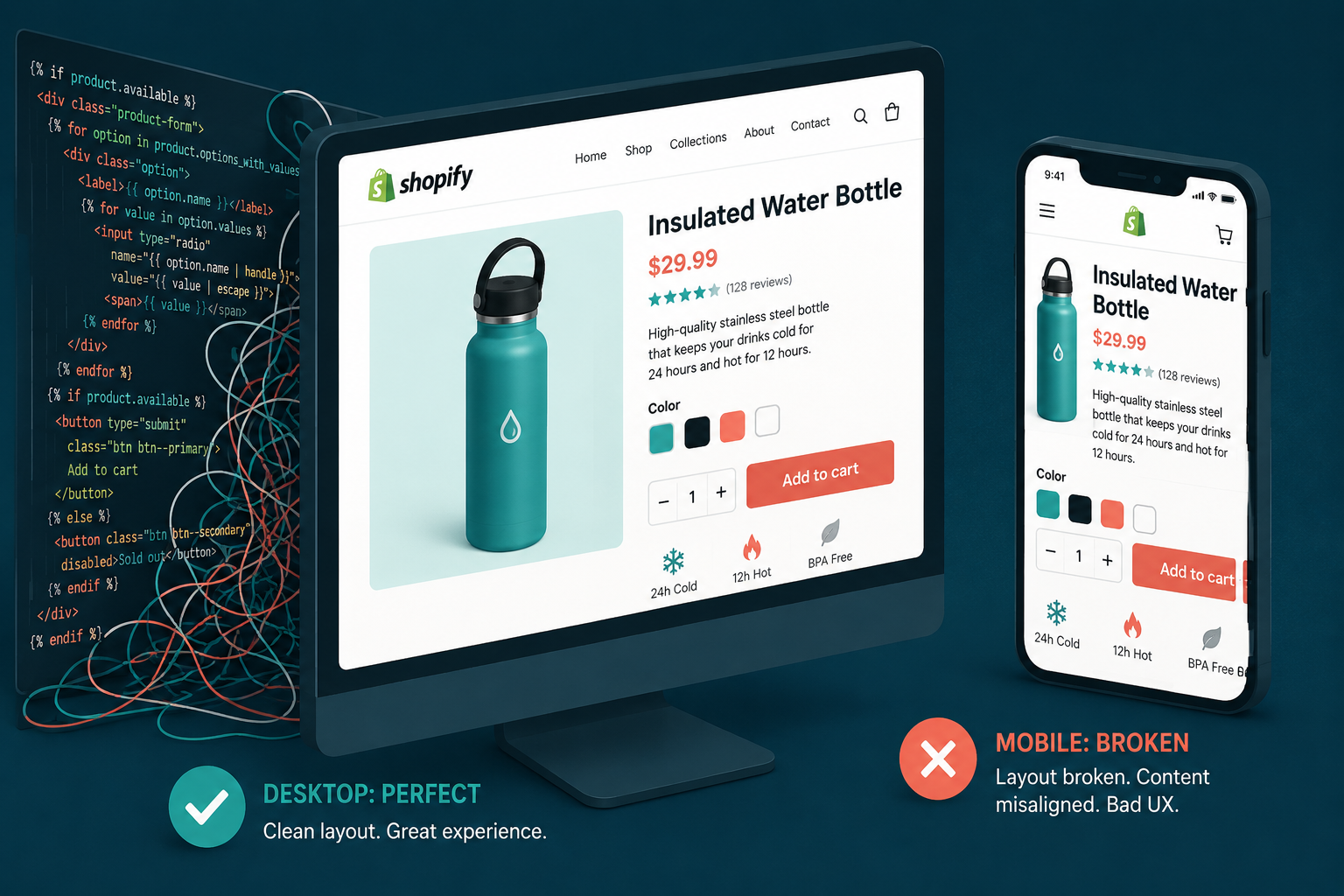
The Problem A customization that looks perfect on a desktop can completely break on mobile. This happens constantly — custom banner layouts that stack awkwardly, font sizes too large to read on small screens, buttons that get cut off, or custom sections with fixed pixel widths that overflow on a 375px iPhone screen. The problem is compounded by how most people test. They make changes in the Shopify Theme Editor on a desktop, glance at the mobile preview toggle, and assume everything looks fine. That preview is not accurate. Real devices behave differently. The Fix Test every single customization on actual mobile devices, not just the preview in the editor. Use Chrome DevTools to simulate multiple device widths (iPhone SE, Galaxy S series, iPad). Set breakpoints in your CSS using max-width media queries and build with a mobile-first mindset — design for the smallest screen first, then scale up. For custom sections and snippets, avoid fixed pixel widths. Use relative units like %, vw, rem, or CSS Flexbox and Grid to create layouts that adapt gracefully across all screen sizes.
5. Overwriting Theme Updates by Customizing the Base Theme Files
The Problem Shopify themes like Dawn get regular updates — bug fixes, accessibility improvements, new features. But if you've directly edited the theme's core files (rather than creating your own snippets and sections), every update becomes a disaster. Applying the update overwrites your customizations. Not applying the update means missing critical improvements. Many store owners don't realize they've painted themselves into this corner until Shopify pushes an important update and they're faced with an impossible choice: lose the update or lose their customizations. The Fix Keep your custom code separate from the theme's core files wherever possible. Create new snippet files for your custom components rather than altering existing ones. When you must modify a core section, comment your changes clearly so you can re-apply them after an update. A better long-term solution is to maintain your customizations in a version-controlled repository and apply theme updates systematically, merging your changes back in after reviewing what changed. It's a bit more process overhead — but it means you can always update safely without losing your work.
Avoiding These Mistakes: The Bigger Picture
Most of these theme customization mistakes share a common root cause: treating Shopify like a static website rather than a dynamic, settings-driven system built for flexibility and maintainability. When you work with Shopify's architecture — using theme settings, building modular snippets, backing up before every change, and testing across real devices — customization becomes reliable and scalable. Your theme stays fast, your updates stay safe, and your store stays conversion-ready. If your Shopify theme has accumulated technical debt from past customization mistakes — slow load times, broken mobile layouts, or messy leftover code — a professional Shopify theme audit can identify exactly what's hurting your store and give you a clear roadmap to fix it.
Need help cleaning up your Shopify theme or building a custom setup the right way? Get in touch — we'll take a look at what's going on under the hood.